Download Quotex App for Android, iPhone and PC - Free Install Guide
The Quotex app gives traders full access to a digital options platform directly from their smartphone or desktop. Whether you are a complete beginner exploring the markets for the first time or an experienced trader who needs a reliable mobile terminal, this page covers everything you need: how to install the app on any device, what features it offers, and how to get started immediately after download.
The app is free to install, supports over 400 tradable assets, and includes a $10,000 demo account so you can explore the platform without risking real money. Read on to find the right installation method for your device.
Get the Quotex First Deposit Bonus
Quotex

Trade on Quotex online with bonus and explore a modern digital options platform with fast order execution, flexible strategies and convenient trading tools.
Why Traders Choose the Quotex Mobile App
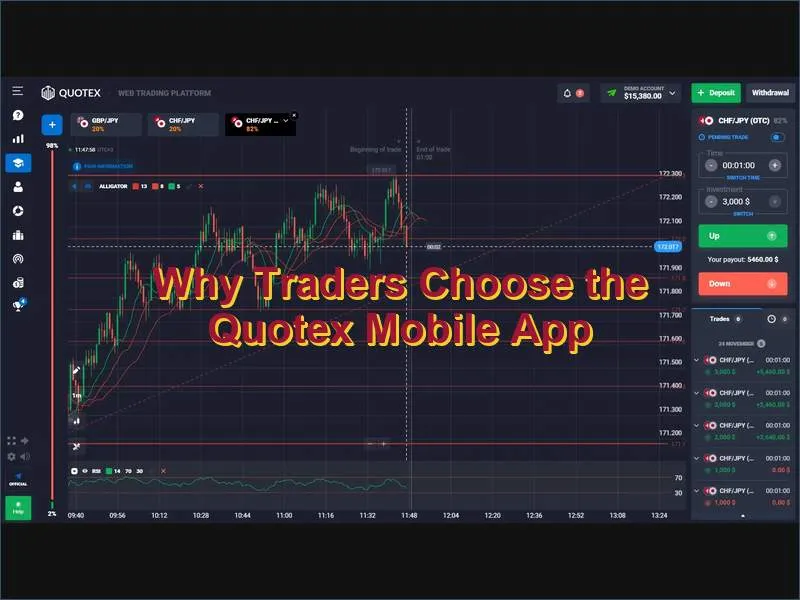
The Quotex app was built to replicate the full desktop experience on a compact screen. Rather than offering a stripped-down mobile version, the platform delivers the same charts, indicators, and order tools regardless of whether you are on Android, iOS, or a Windows PC.
| Feature | Details |
|---|---|
| Supported platforms | Android, iOS, Windows, macOS (via browser) |
| Tradable assets | 400+ (currencies, crypto, commodities, indices) |
| Minimum deposit | $10 |
| Maximum payout | Up to 95% |
| Demo account | $10,000 virtual funds, free, unlimited resets |
| Customer support | 24/7 live chat |
| Download fee | Free |
Core Features of the Quotex App
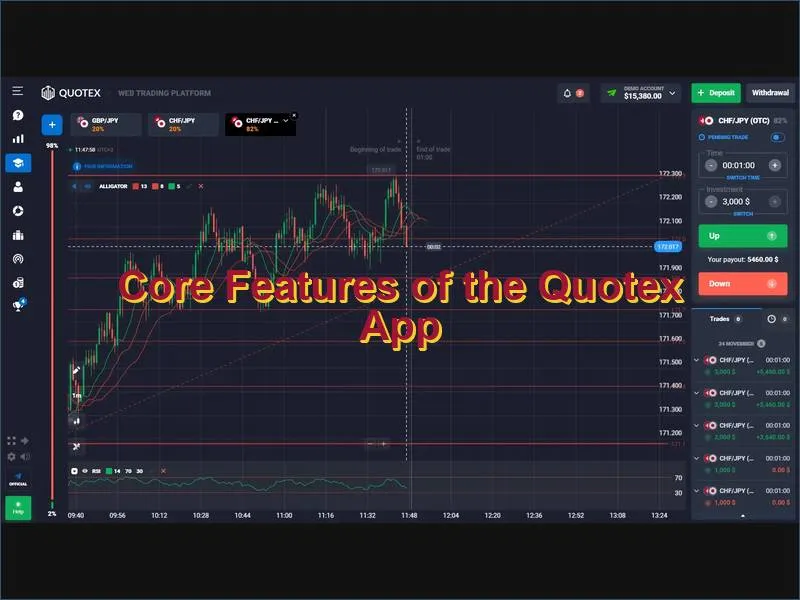
Before you install any trading application, it makes sense to understand exactly what it offers. Below are the capabilities that define the Quotex trading experience on mobile and desktop.
Real-Time Charts and Technical Indicators
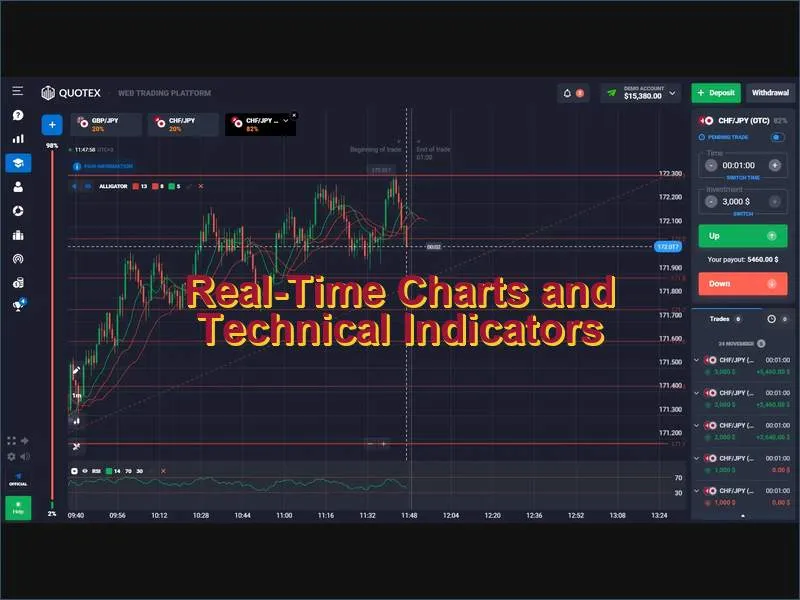
The app provides live candlestick, bar, and line charts with timeframes ranging from 1 second to 1 week. Built-in indicators include RSI, MACD, Bollinger Bands, Moving Averages, and dozens of others - all accessible without switching to an external charting tool. Traders who rely on technical analysis will find the toolkit comprehensive enough for most strategies. For deeper exploration of how to use these tools effectively, visit the trading strategies section.
One-Tap Trade Execution
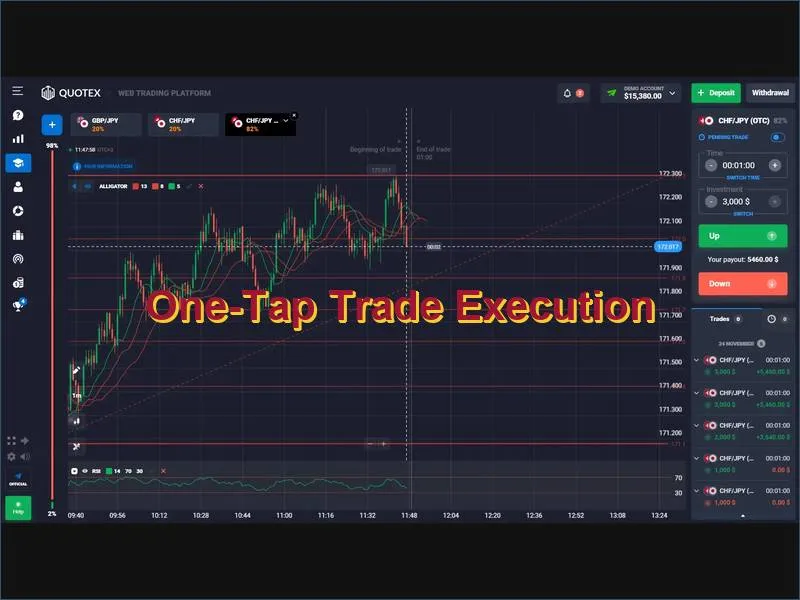
Orders are placed with a single tap on a clearly labelled Higher or Lower button. The platform executes at the exact price displayed, with no requotes or delays. This matters most during fast-moving market conditions where even a fraction of a second can affect a trade outcome.
Free Demo Account with Virtual Funds
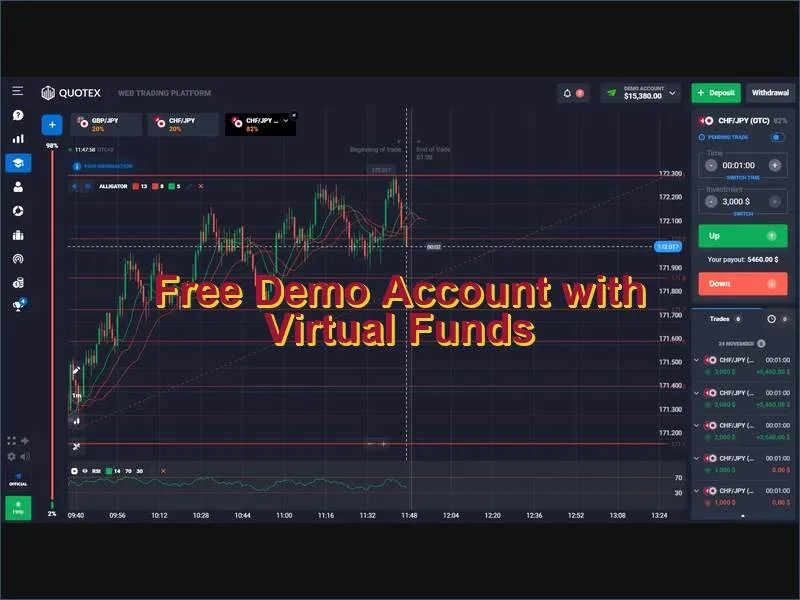
Every account - new or existing - has access to a demo environment loaded with $10,000 in virtual funds. The demo mirrors live market conditions exactly, so anything you practise there reflects how the platform behaves with real money. The balance resets on demand, making it a practical space for testing new strategies without financial exposure. New to the platform? Start at the demo account page before committing any real capital.
Push Notifications and Price Alerts
You can configure custom alerts for any asset. When a price target is reached, the app sends a push notification even when it is running in the background. This means you do not need to keep the screen on or the app open to stay informed about setups you are watching.
Secure Deposits and Fast Withdrawals
The app supports a wide range of deposit and withdrawal methods, including bank cards, e-wallets, and cryptocurrency transfers. Deposits are processed instantly. Withdrawals are handled through the same interface - no need to log into a separate website. The full list of supported options is available on the payments page. The minimum deposit amount is $10, making the platform accessible regardless of starting capital.
How to Download the Quotex App on Android
Android users can install the official Quotex app directly through the Google Play Store. The process takes under two minutes on most devices running Android 5.0 or higher.
- Open the Google Play Store on your Android device and make sure you are signed into your Google account.
- Search for QxBroker or Quotex in the search bar. Look for the app published by STONETRADE LTD to confirm you have the official version.
- Tap Install on the app listing page. The download is lightweight and completes quickly even on slower mobile connections.
- Open the app once installation finishes. Existing users can sign in with their credentials immediately. New users can create a free account directly within the app.
- Enable two-factor authentication in the security settings before making any deposits - this protects your account against unauthorised access.
Once logged in, navigate to the demo account to familiarise yourself with the interface before switching to live trading.
How to Install the Quotex App on iPhone and iPad
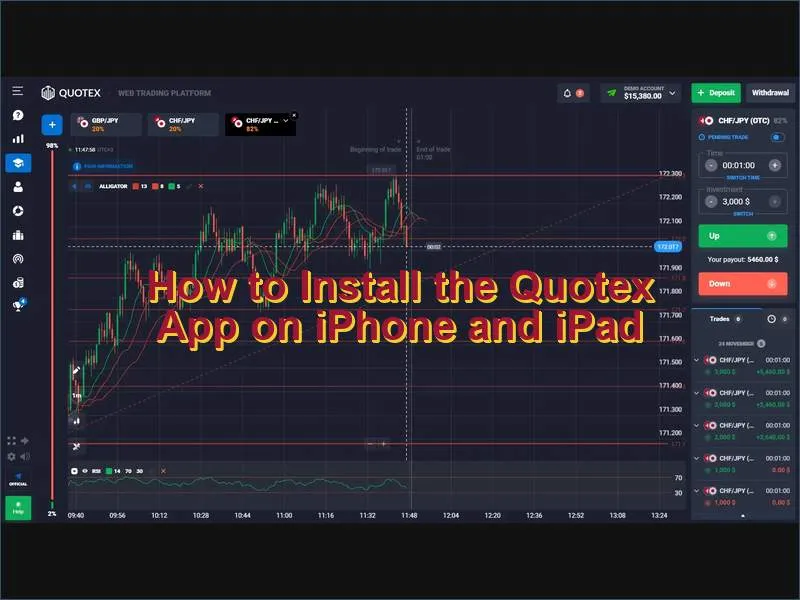
On iOS, Quotex functions as a Progressive Web App (PWA) added directly to your home screen via Safari. It behaves like a native app - full-screen, icon on the home screen, no browser bars - but without going through the App Store.
- Open Safari on your iPhone or iPad and navigate to the official Quotex website.
- Tap the Share icon at the bottom of the Safari browser - it appears as a square with an upward-pointing arrow.
- Select Add to Home Screen from the share menu, then tap Add to confirm.
- Tap the Quotex icon that now appears on your home screen. It opens in full-screen mode, identical to a standard app experience.
- Log in or register - new users can sign up directly in this view. Returning users simply enter their credentials and start trading.
This approach ensures iOS users always access the most current version of the platform, as PWAs update automatically without requiring manual App Store updates.
How to Use Quotex on a PC or Laptop
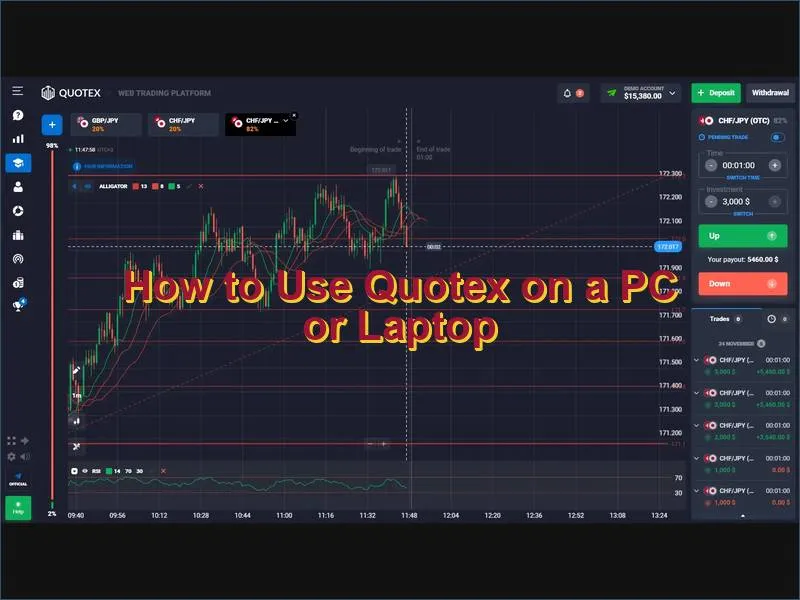
PC trading suits sessions requiring extended chart analysis, multi-asset monitoring, or strategy development. There are two main approaches depending on your operating system.
Windows Desktop App
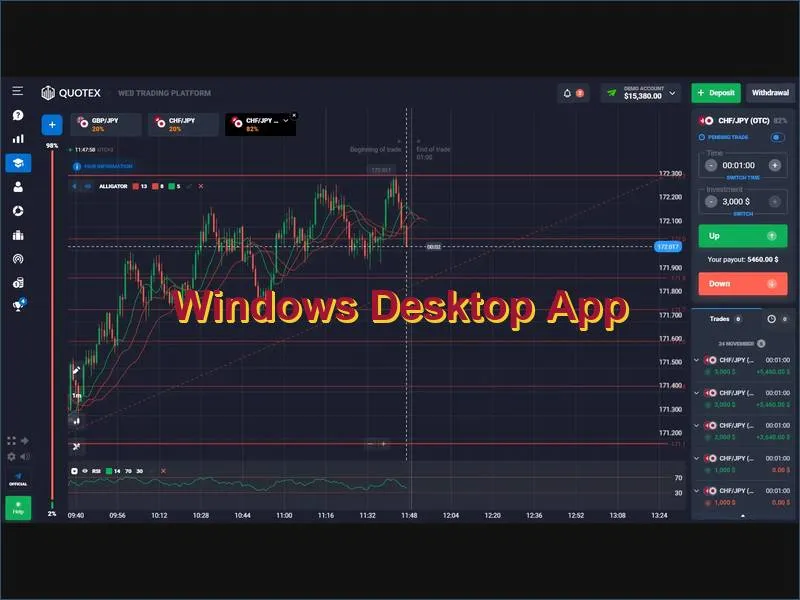
A dedicated Windows installer is available from the official Quotex website. Visit the download section, select the Windows version, run the installer with administrator rights, and follow the setup prompts. The application installs in a few minutes and launches independently of a browser. This option provides the most stable connection and fastest rendering, which is relevant when working with shorter timeframes or heavier indicator setups.
Running the Android App on PC via Emulator
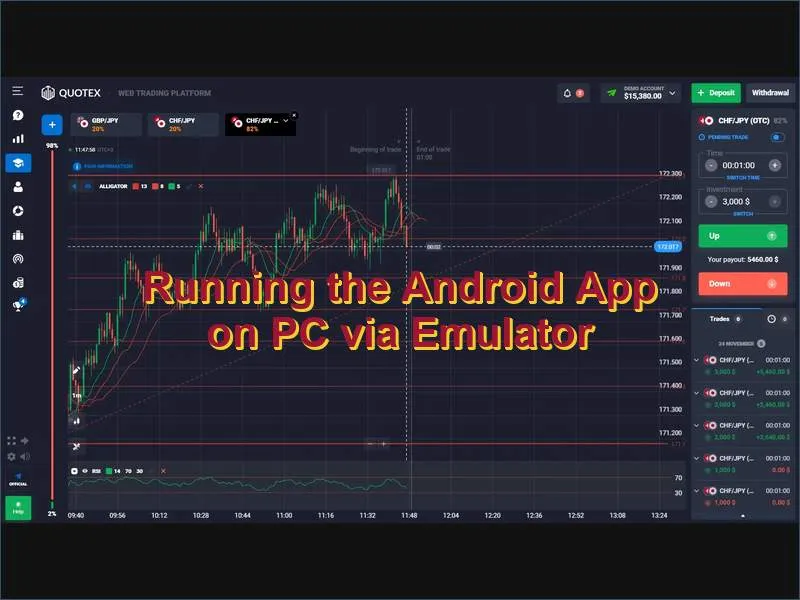
If you prefer the mobile interface on a larger screen, you can run the Android version of Quotex through an emulator such as BlueStacks or MEmu Play. Install the emulator, open the Google Play Store within it, search for QxBroker, and install as you would on a mobile device. This method works on both Windows and macOS and gives access to the full mobile feature set on a desktop display.
Quotex App vs Browser Trading: What to Choose
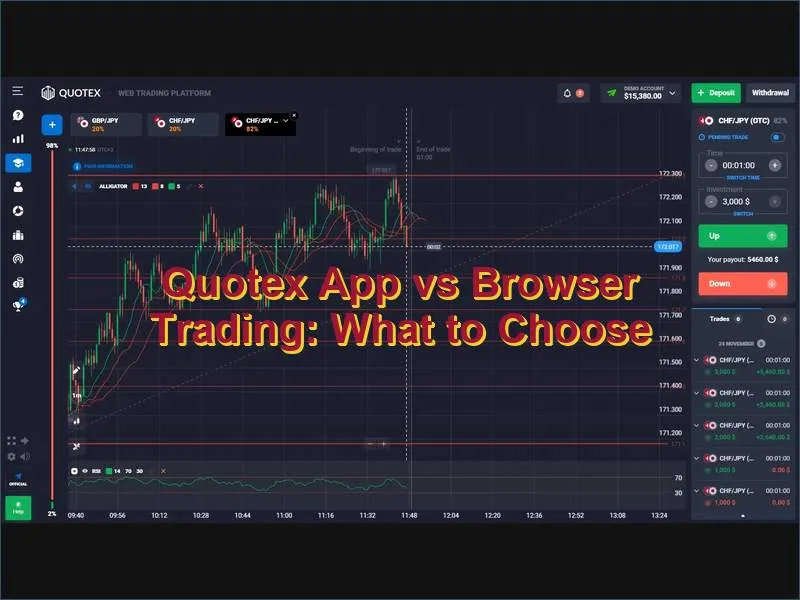
| Criterion | Mobile App | Browser Platform |
|---|---|---|
| Push notifications | Yes | No (tab must remain open) |
| Connection stability | Higher (native connection) | Depends on browser load |
| Chart screen space | Optimised for mobile | Full desktop width available |
| Ease of access | One tap from home screen | Browser bookmark required |
| Suitable for | On-the-go trading, quick entries | Extended analysis sessions |
Most active traders use both: the mobile app for monitoring positions and reacting to alerts while away from the desk, and the browser platform for detailed chart work and planning. The two environments share the same account, so positions opened on one are immediately visible on the other.
Getting Started After Installation
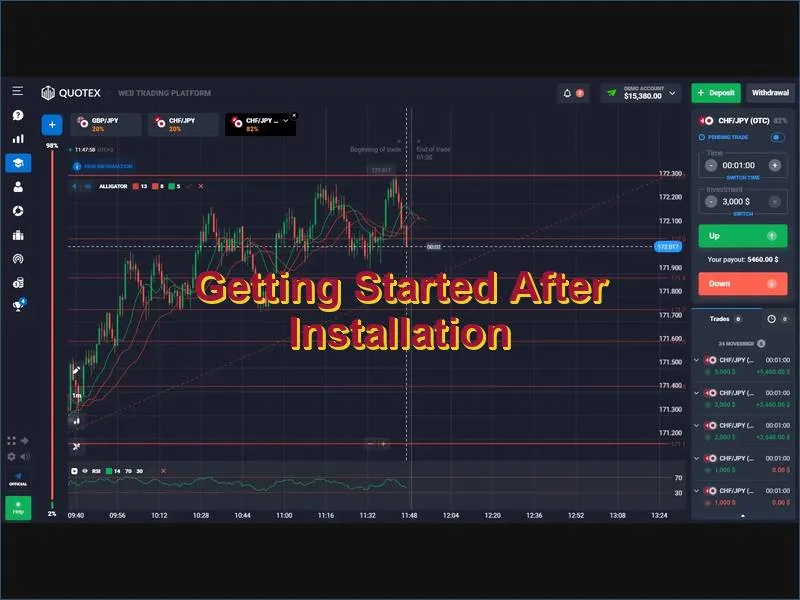
Once the app is installed and you are logged in, these are the recommended steps before placing your first live trade:
- Switch to the demo account and spend time navigating the interface - place a few practice trades to understand how the platform responds.
- Review the available assets - the platform offers currencies, cryptocurrencies, indices, and commodities. Choose instruments you already follow or understand.
- Set up price alerts on assets you plan to watch - this removes the need to monitor charts constantly.
- Check available bonuses before your first deposit - promotional offers can increase your starting balance. Current offers are listed on the bonuses page and promo codes page.
- Make your first deposit - the minimum is $10. Visit the payment methods page to choose the option that works best for your region.
If you want to learn more about the platform before depositing, the full Quotex review covers account types, regulation, payout rates, and withdrawal conditions in detail. Returning users who already have an account can go directly to the login page.
Frequently Asked Questions about Quotex App
Is the Quotex app free to download and use?
What Android version is required to install the Quotex app?
Why is Quotex not available in some App Stores?
Can I use the same Quotex account on multiple devices?
How do I secure my Quotex app account?
Does the Quotex app work on Mac computers?
Can I deposit and withdraw funds directly through the app?
Quotex